Workspaces are Envato's tool for organizing and licensing assets by project, client, or campaign — replacing the older Collections feature. They let you group assets together, bookmark items as you browse, bulk-download or bulk-license selections, and share a curated set of assets with clients or collaborators via a link.
Envato Workspaces replaced Collections to help you group, bulk-license, and bulk-download assets by project. Use the bookmark icon to save items while browsing, and use the bottom toolbar or dropdown menu to manage your selections.
What can I do with Workspaces?
Workspaces make it easier for you to manage your workflow directly within Envato:
- Group assets by brief, client, or campaign: Keep everything for one project in one convenient location.
- Stay organized: Find assets quickly instead of digging through your full download history.
- Avoid context-switching: Work on a specific project without jumping between different parts of Envato.
- Feed your AI generations: Drop assets you've curated in a Workspace — including files you've uploaded yourself — straight into the Envato AI experience to use as references, so what you've already collected shapes what you create next.
Where can I find my Workspaces?
Your Workspaces now appear on the Envato app home page, so you can pick up a project right where you left off.
How do I migrate from Collections to Workspaces?
Click Migrate your previous work inside Workspaces. Your existing Collections aren't deleted or altered — you choose exactly which ones to bring into Workspaces at your own pace.
How do bookmarks work in Workspaces?
Click the bookmark icon on any item to save it directly into a Workspace. This is the fastest way to build a project collection as you browse, without interrupting your search to organize things manually.
Saved items have a highlighted bookmark icon, so it's easier to spot what you've already saved while you browse. This way, you can spend less time searching and feel more confident that you're keeping track of the things you like.
How do I use the Workspace Toolbar for bulk actions?
Hover over an item, tick its select box in the top-right corner, then choose an action from the toolbar at the bottom of the screen. You can select multiple items at once and apply the same action to all of them:
| Action | What it does |
|---|---|
| Download | Downloads all selected items in one go; each item is licensed to the Workspace it is downloaded from. |
| Move | Moves assets between Workspaces to keep your projects sorted. |
| Copy | Duplicates selected items into a different Workspace so you can reuse assets across multiple projects. |
| License | Licenses all selected items in one click to the current Workspace, an existing one, or a brand-new one. Licenses are delivered as a single zip file containing each item's individual license. |
| Delete | Removes selected items you no longer need from the Workspace. |
What can I do with the Workspace Menu?
The Workspace dropdown menu applies actions to an entire Workspace, rather than individual items inside it:
- Select: Enter multi-select mode to Download, Move, Copy, License, or Delete items via the toolbar.
- Rename: Update a Workspace's name at any time.
- Duplicate: Clone an existing Workspace as the starting point for a new, similar project.
- Share: Check Allow link sharing, then copy the link to give clients or collaborators view access to everything saved in that Workspace.
- Delete: Remove an entire Workspace when you no longer need it.
How do I search in Workspaces
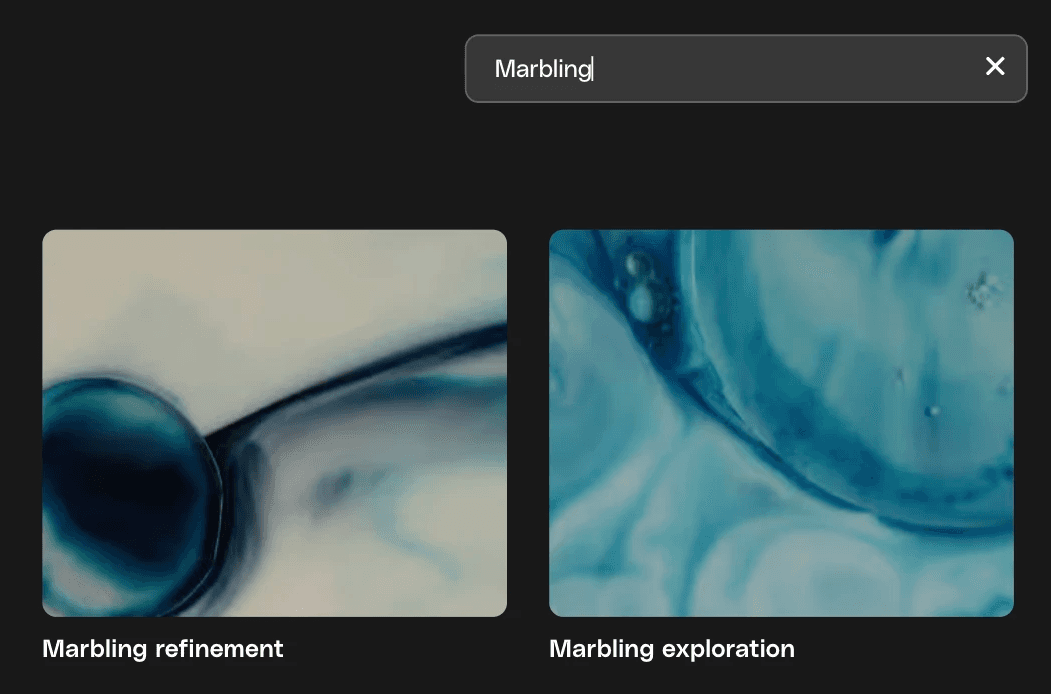
You can quickly search your Workspaces by name. Start typing and your Workspaces will instantly filter to show matches, so you can jump straight into the Workspace you need.

Nested Workspaces
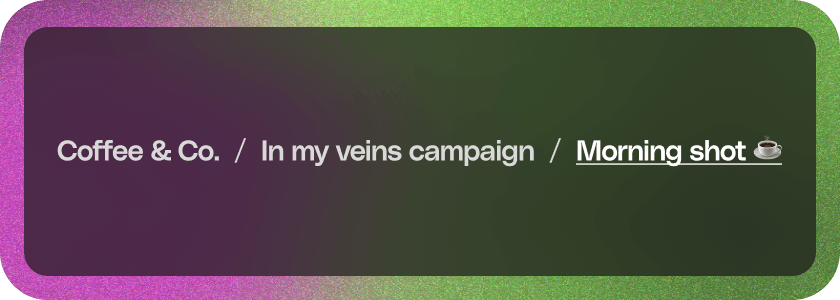
You can now create workspaces inside other workspaces to build a hierarchy that matches how you organise your projects. For example, you might have a top-level workspace for a client, with nested workspaces for each campaign or project underneath. To nest a workspace, simply create a new workspace from within an existing one, or drag and drop to rearrange your workspace structure.
Drag and drop
Drag and drop now works in more places across the Envato app, so you can move things where you need them without opening a menu. You can:
- Drag an item into a Workspace while you're browsing, instead of using the bookmark icon
- Drag a workspace onto another workspace to nest it
- Drag assets between workspaces to reorganise a project
- Drag an asset you've saved in a Workspace straight into the generation experience to use it as a reference
- Drag a file from your own device into a Workspace to upload it and reuse it later
If drag and drop isn't working for you, check that you're using the Envato in a desktop browser — drag and drop isn't available on mobile.
Can I upload my own files to a Workspace?
Yes. Drag files from your device onto a Workspace page, the Workspace panel, or the references modal, and they'll be saved into that Workspace. Once a file is in a Workspace you can reuse it across Envato instead of re-uploading it every session. Uploaded files can be used as references when you generate, and when you search for photos. Reference support for music is on the way. Envato doesn't read or interpret the contents of your uploaded files yet — for now they sit in your Workspace as reference material you point at.
Downloads and licensing inside Workspaces
Items downloaded or licensed through a Workspace still draw on your active Envato subscription the same way any other download does. See Do any limits apply to Envato Downloads or AI generations? if you are unsure how download limits or Envato Full License Wording to check how licensing work at the account level, or item support if a specific downloaded item isn't working as expected.
Frequently Asked Questions
-
What are Workspaces in Envato?
Workspaces are a tool for organizing and licensing creative assets by project, client, or campaign. They replace the older Collections feature and add powerful capabilities like bulk download, bulk licensing, and link sharing.
-
Are Workspaces the same as Collections?
Workspaces replace Collections to give you better utility. Your existing Collections remain completely intact and you can migrate them into Workspaces individually at any time using the "Migrate your previous work" button.
-
How do I add an item to a Workspace?
Simply click the bookmark icon on any item while browsing. The item saves directly to your designated Workspace without interrupting your search layout.
-
Can I use my Workspace assets in Envato's AI tools?
Yes. With a Workspace active, you can drag assets from it directly into the Envato AI experience and use them as references for your generations. This works for assets you've saved from Envato and for files you've uploaded yourself, so everything you've collected for a project stays close at hand while you create.
-
Can I download multiple items from a Workspace at once?
Yes. Select multiple items using the checkboxes on the items, then click Download in the bottom toolbar. All selected items will download together and automatically license to that Workspace.
-
Can I move assets between Workspaces?
Yes. You can easily move assets by selecting one or more items and clicking the Move action in the bottom toolbar.
-
How does licensing work inside a Workspace?
Select the items you want to license and click License. You can license them directly to your current Workspace, an existing one, or a brand-new one.
-
Can I share a Workspace with a client?
Yes. Open the Workspace dropdown menu, choose Share, check Allow link sharing, and copy the unique link. Anyone with that link can view the Workspace's contents.
-
Can I duplicate a Workspace?
Yes. Use the Duplicate option in the Workspace menu. This is highly useful for starting a new project based on a previous asset setup.
-
Can I rename or delete a Workspace?
Yes, both options are available to you in the Workspace dropdown menu at any time.
-
Is the Workspaces feature finished?
No. Envato is actively developing and improving Workspaces. We highly welcome your feedback to help build a better tool for your workflow.
-
Do Workspace downloads count against my subscription the same way?
Yes. Downloading or licensing items through a Workspace utilizes your active subscription the same as any standard download.